
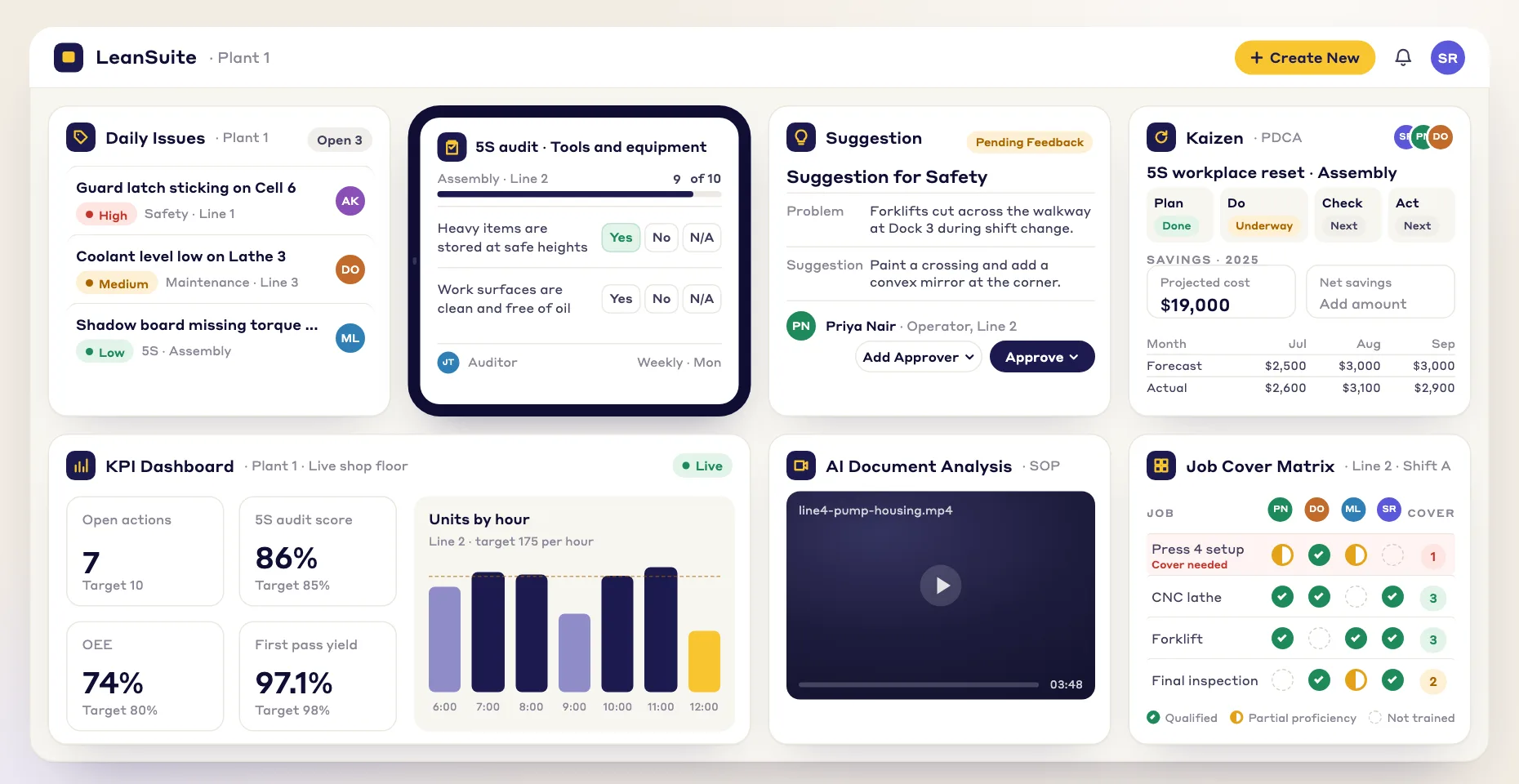
Custom Home
A Home dashboard for every person in the plant
Everyone who signs in to LeanSuite lands on their own Home: what is overdue, what is assigned to them and what waits for their approval. Each person picks their own widgets, and only they see the layout.
Last updated:
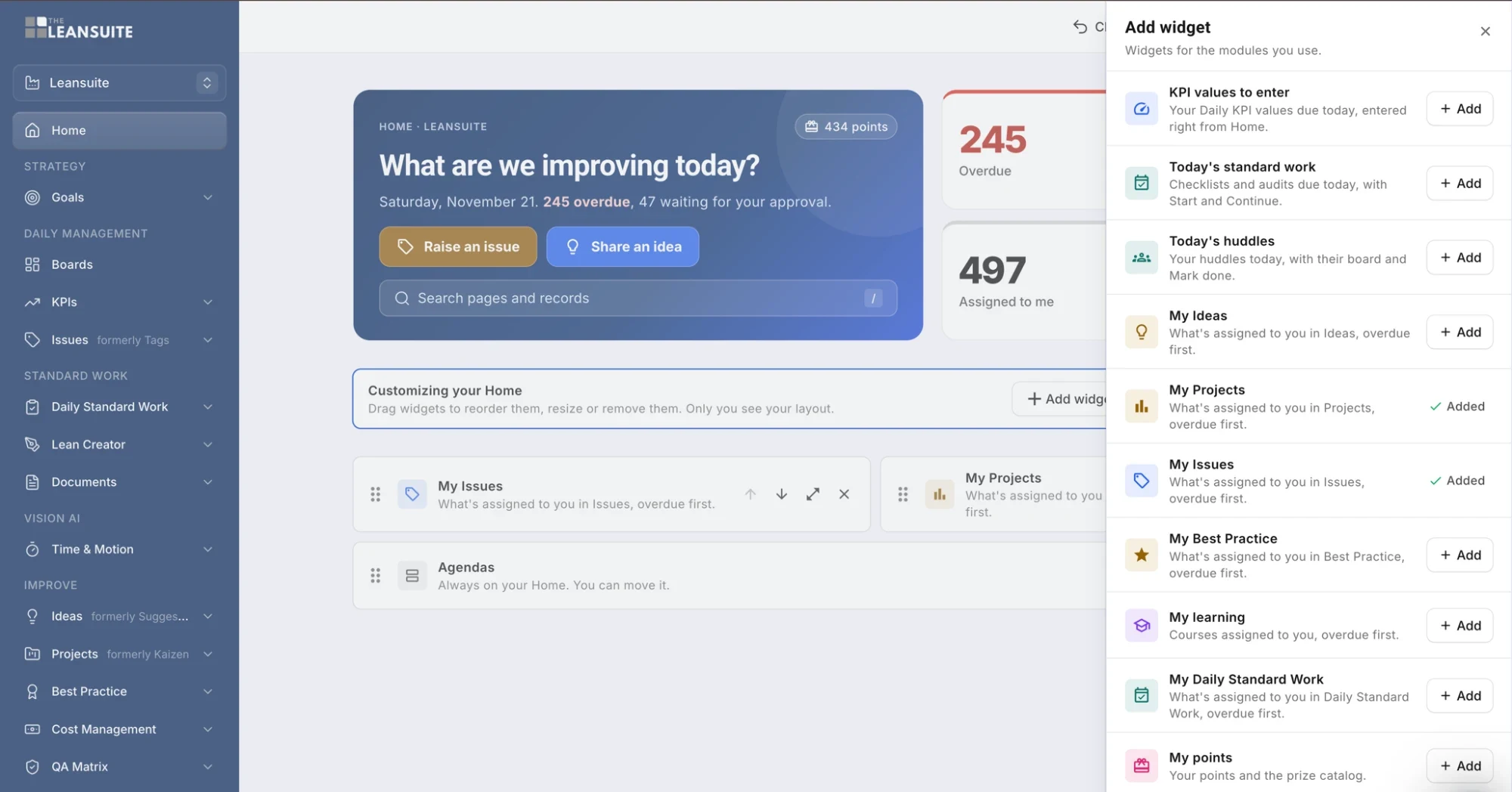
Your Home
Your day, before you open a module
The top of Home answers one question: what needs me today. The numbers are yours, not the plant's, so two people on the same line see different counts.
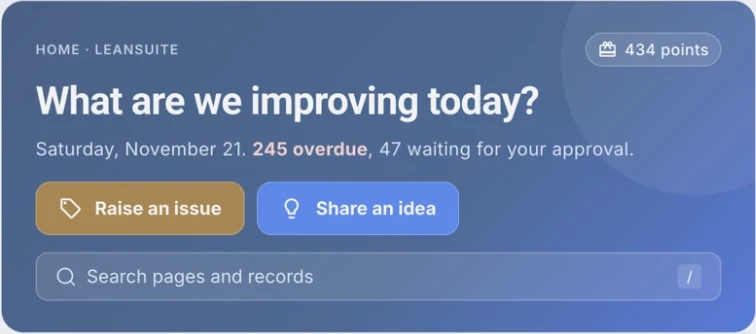
Today's count
The date, how many of your items are overdue and how many are waiting for your approval.
Overdue and Assigned to me
Two totals beside the greeting, so you see your open load before anything else.
Raise an issue, Share an idea
The two things anyone on the floor should be able to do in one tap.
Search pages and records
One search box for pages and records, right under the buttons.
Your points
Your points total sits in the corner. The My points widget adds the prize catalog.
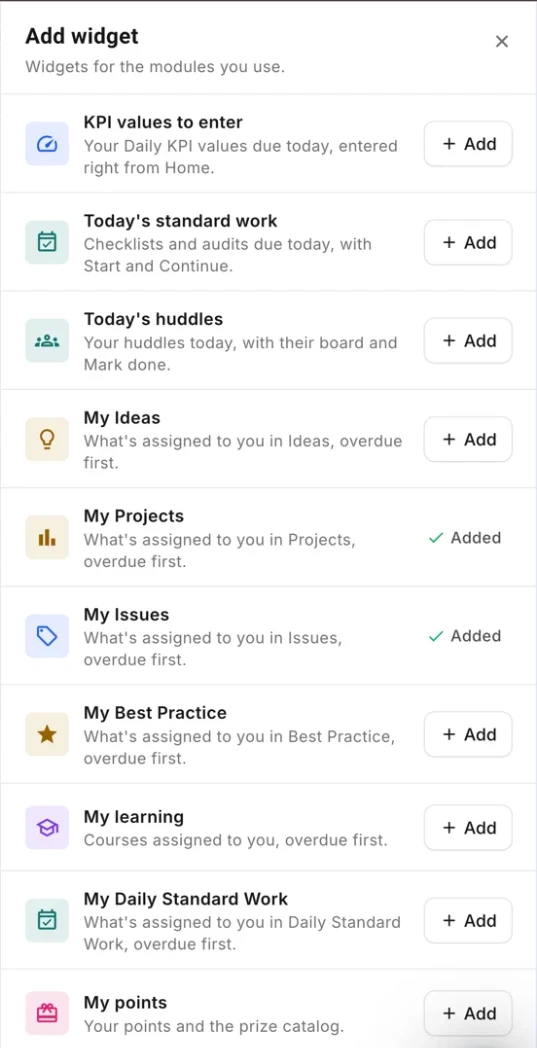
Add widget
Ten widgets for the modules you use
Each widget brings one list or one task onto Home, so you act on it without opening the module. Lists put overdue items first.
KPI values to enter
Your Daily KPI values due today, entered right from Home.
About this moduleToday's standard work
Checklists and audits due today, with Start and Continue.
About this moduleToday's huddles
Your huddles today, with their board and Mark done.
About this moduleMy Ideas
What's assigned to you in Ideas, overdue first.
About this moduleMy Projects
What's assigned to you in Projects, overdue first.
About this moduleMy Issues
What's assigned to you in Issues, overdue first.
About this moduleMy Best Practice
What's assigned to you in Best Practice, overdue first.
About this moduleMy learning
Courses assigned to you, overdue first.
About this moduleMy Daily Standard Work
What's assigned to you in Daily Standard Work, overdue first.
My points
Your points and the prize catalog.
Your layout
Drag, resize or remove. Only you see it.
While you customize your Home, every widget shows a drag handle and its controls. The Agendas widget is always there, and you decide where it goes.
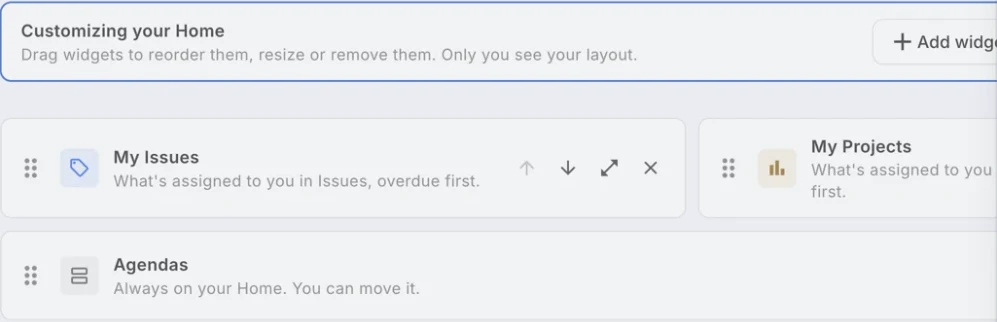
Add
Open Add widget and pick from the widgets for the modules you use.
Reorder
Drag a widget by its handle, or move it up and down with the arrows.
Resize
Make a widget larger or smaller with its resize control.
Remove
Take off a widget you don't use. You can add it back at any time.
Agendas stay
Agendas is always on your Home. You can move it, not remove it.
Only you see it
Your layout is yours. Changing it doesn't change anyone else's Home.
The sidebar
Modules grouped the way a plant runs
The sidebar sorts every module under the job it does, from setting goals to engaging people, with Workflows and Admin below. Each person sees only the modules they can access. Three modules have new names, and the old name shows next to each.
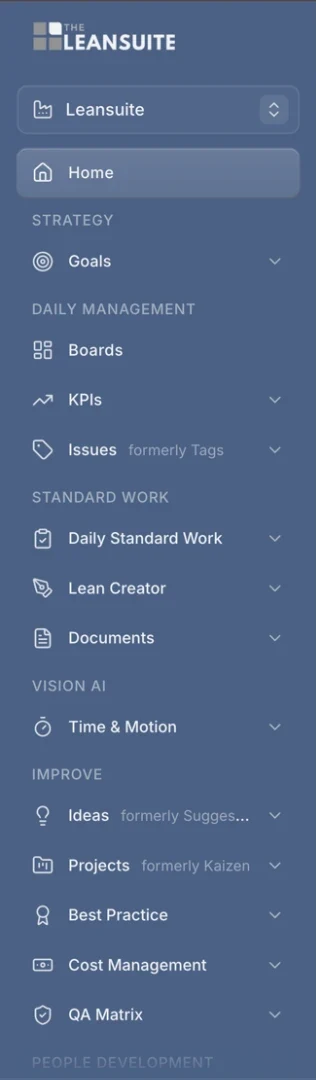
Strategy
Daily Management
Standard Work
- Daily Standard Work
- Lean Creator
- Documents
Vision AI
Improve
- Ideas (formerly Suggestions)
- Projects (formerly Kaizen)
- Best Practice
- Cost Management
- QA Matrix
People Development
Engagement
- Campaigns
- Rewards
Rewards holds the prize catalog behind the points on Home.
By role
What an operator sees is not what a plant manager sees
An admin sets the default Home for each role or site, so people start with the widgets that fit their job. Each person can then change their own layout.
The sidebar shows only the modules a person can access, and role-based access control limits each person to the data they are allowed to see. The counts and the My widgets list only what is assigned to you.
For shared numbers, arrange KPI dashboards into a view for each role. Below are example defaults an admin might set.
Operator
Knows what to check this shift and what is waiting on them.
- Today's standard work
- My Issues
- My learning
- My points
Team lead or supervisor
Runs the huddle, enters the day's numbers and clears the tags.
- Today's huddles
- KPI values to enter
- My Issues
- My Daily Standard Work
CI or lean manager
Keeps ideas answered and projects moving.
- My Ideas
- My Projects
- My Best Practice
- Today's huddles
Plant manager
Sees their own actions and approvals before the next meeting.
- Today's huddles
- My Projects
- My Issues
- My Ideas
FAQ
Your Home in LeanSuite: common questions
Home is the first page each person sees after signing in. It shows how many of their items are overdue, how many are assigned to them and how many wait for their approval, with buttons to raise an issue or share an idea, a search box for pages and records, and the widgets they chose.
Yes. Each person adds widgets from the Add widget panel, drags them to reorder them, resizes them or removes them. Only that person sees their layout, so changing it does not change anyone else's Home.
KPI values to enter, Today's standard work, Today's huddles, My Ideas, My Projects, My Issues, My Best Practice, My learning, My Daily Standard Work and My points. The panel shows widgets for the modules you use. Agendas is always on Home; you can move it.
Yes. An admin can set the default Home for each role or site, so a new operator and a new plant manager each start with widgets that fit their job. Each person can then change their own layout, and only they see it.
Yes. The sidebar shows only the modules a person can access, and role-based access control limits each person to the data they are allowed to see. The counts and the My widgets show only what is assigned to you, so an operator and a plant manager see different lists. For shared numbers, KPI dashboards can be arranged into a view for each role.
Home is a personal to-do view: your overdue items, your approvals and the work assigned to you. KPI dashboards and boards show a team's or a plant's numbers for huddles and reviews. A team lead can enter the day's KPI values from Home and then run the huddle from its board.
Try it on one line for 90 days
$3,000 per facility for 90 days, and our team does the setup. Your first module is live in under a week.