
Free template
5S red tag log and red tags
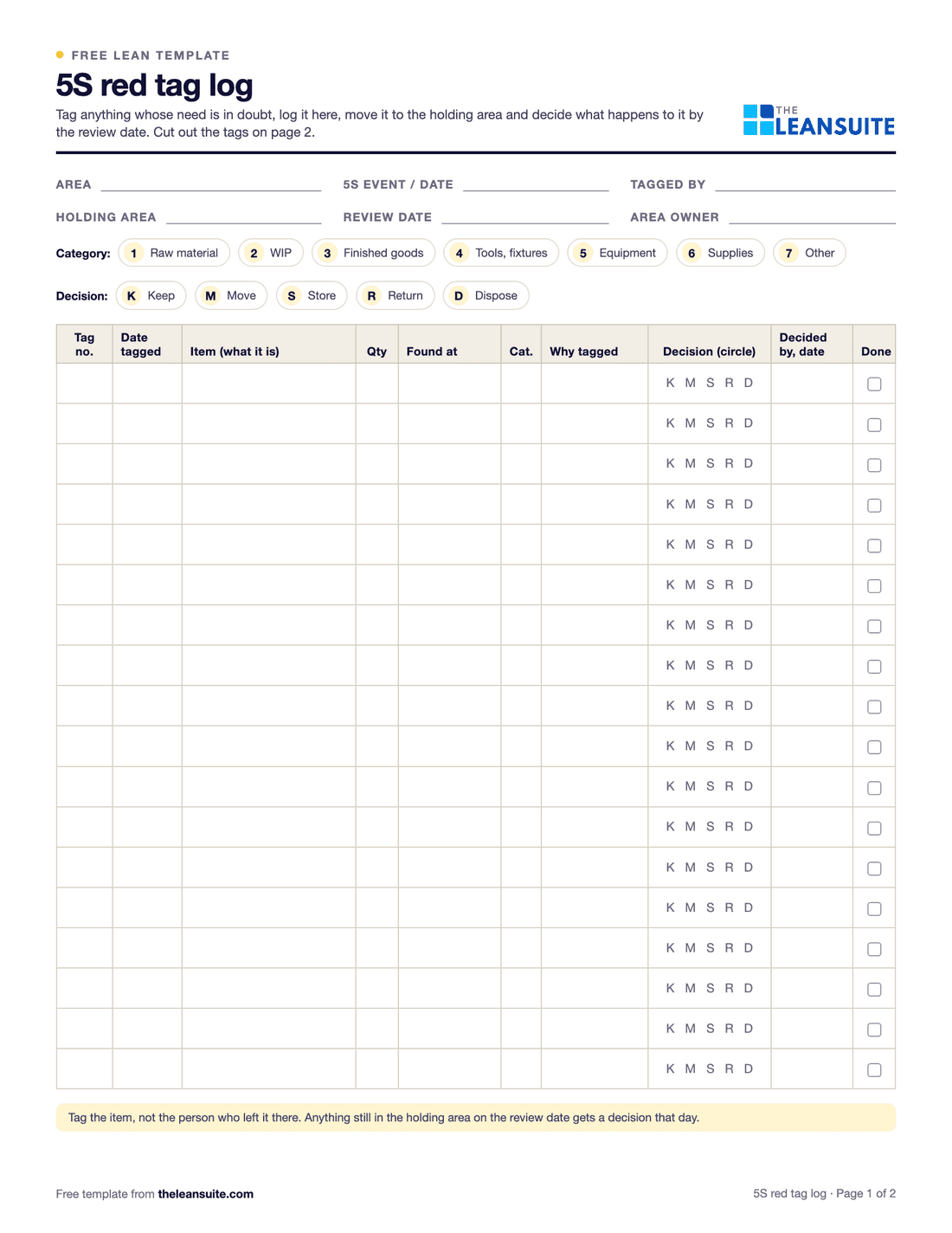
A red tag marks an item whose need in an area is in doubt during the sort step of 5S. The item gets a tag, goes to a holding area, and by a set date someone decides whether to keep it, move it, store it elsewhere, return it or get rid of it. The red tag log is the list of every tagged item, so nothing sits in the holding area for months and nothing valuable is thrown out by mistake. Page 1 of this template is the log, with the tag number, date, item, quantity, where it was found, category, why it was tagged and the decision. Page 2 has six red tags to print and cut out.
Free to use: print it, copy it and edit it for your team. Enter your name and work email once to download.
When to use it
When to use a red tag log
- During the sort step of a 5S event, when a team goes through an area and tags everything it is not sure about.
- When a 5S audit scores low on sort, to clear the area again.
- Before a layout change or a move, so only what is needed goes to the new area.
- On a regular round, for example each quarter, in areas where unneeded items build up again.
How to fill it in
- 1
Agree the rules before you start
Set the holding area, the review date and who decides on items. Agree what counts as needed, for example used in the last month or needed for the next order.
- 2
Tag everything in doubt
Walk the area with the tags. Fill one in for each item or batch, give it the next number from the log and fix it where it can be seen.
- 3
Log it and move it
Write each tag on the log: date, item, quantity, where it was found, category and why it was tagged. Move the item to the holding area unless it is too big to move.
- 4
Decide by the review date
For each item, circle the decision: keep it with a marked place, move it to the area that uses it, store it, return it to stores or the supplier, or dispose of it.
- 5
Close each tag
Write who decided and when, carry out the decision and tick done. The Excel version works out the decide-by date and counts open and overdue tags.
- 6
Use the log for set in order
Items that were kept need a marked home. Items tagged again at the next round point to a source that keeps sending them.
A filled-in example
Illustrative, not a benchmarkAn example: a red tag round in a machining cell during a 5S event, with a 30-day holding period set by the area owner.
- 23 items tagged in two hours, from a spare vise under a bench to four boxes of inserts for a part no longer made.
- Categories: 9 tools and fixtures, 6 supplies, 5 material and 3 equipment.
- At the review: 4 kept and given a marked place, 6 moved to the cell that uses them, 3 stored in the tool crib, 2 returned to stores and 8 disposed of.
- One pallet of castings had no owner. The log showed it had been tagged at the last event too, so the area owner took it up with production control that day.
Every tag had a decision by the review date and the holding area was empty again. The kept items went onto the set in order list, and the castings pallet became an action for production control.
Common mistakes
No review date
Without a date, the holding area turns into a second storeroom. Set it before the first tag goes on.
Tagging without logging
Tags fall off and items get moved. The log is what makes sure each one gets a decision.
Throwing things out on the day
Expensive tools and material deserve a check with the owner, purchasing or finance first. That is what the holding area is for.
Only the 5S team decides
The people who work in the area know what they use. Involve them, or the items come back the week after.
Stopping at sort
Kept items need a marked place, or the area fills up again. Take the log into set in order.
Download the template
Free to use: print it, copy it and edit it for your team. Enter your name and work email once to download.
Run this template in LeanSuite
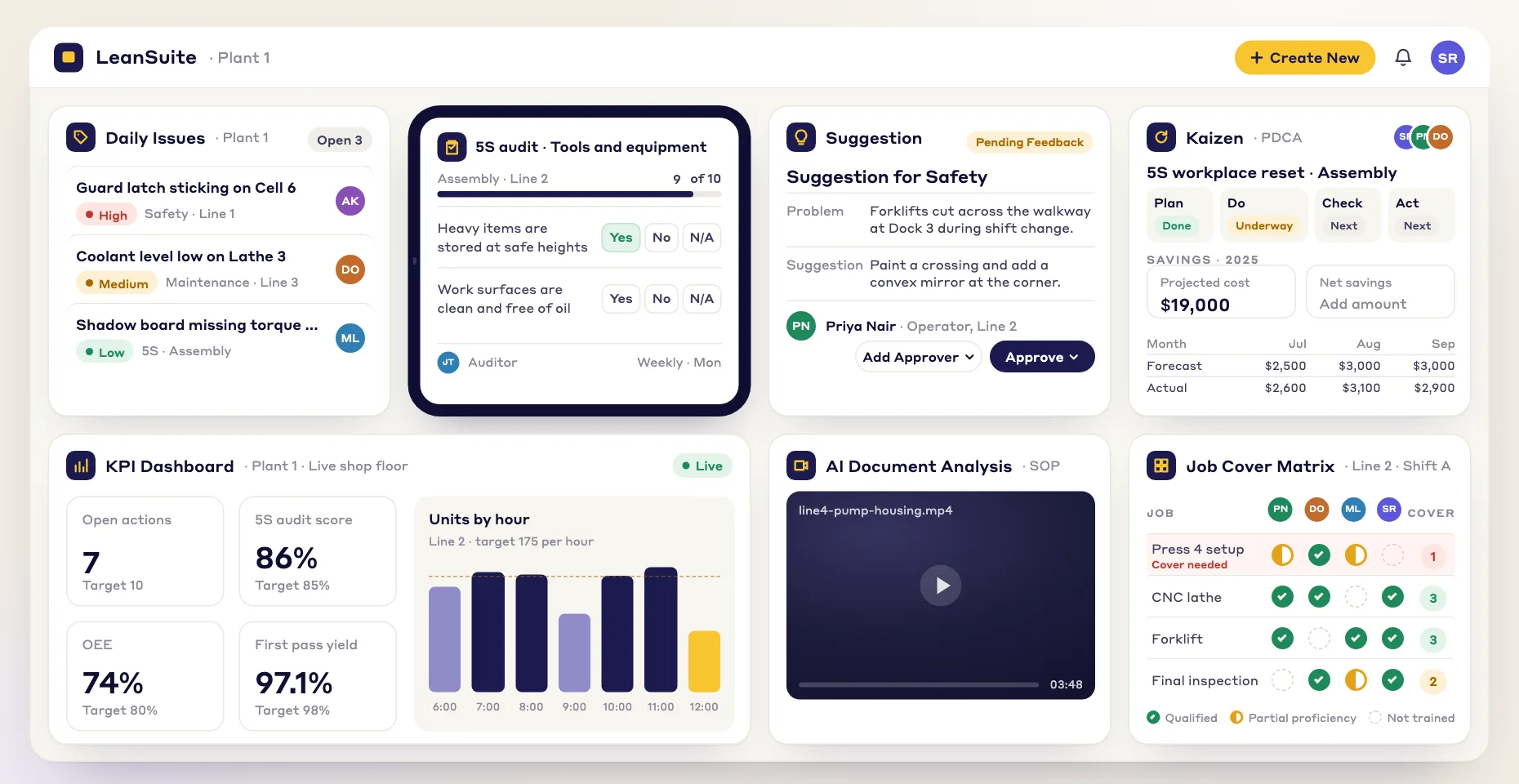
LeanSuite sustains 5S with scheduled, photo-verified 5S audits: a failed audit line becomes a corrective action with an owner and a due date, and it cannot close without a verification photo.
FAQ
5S red tag log and red tags: common questions
More free templates
All templates- 5S audit checklist template25 checks, five per S, scored 1 to 5, with a score summary and a chart of the five S's.
- Gemba walk checklistA walk plan and route, 30 prompts in six groups and a findings table with owners and due dates.
- Leader standard work templateA team leader's daily, weekly and monthly routine with a box per day, follow-ups and a weekly review.
- Autonomous maintenance (CILR) checklist20 clean, inspect, lubricate and retighten checks with a box per day, an abnormality log and sign-off.
- A3 problem solving templateThe standard seven-box A3 on one landscape sheet, from background to follow-up.
- PDCA templateOne improvement cycle on one landscape page: plan, do, check against the goal, then standardize or adjust.
- 5 Whys templateA problem statement, five why rows with evidence, the root cause and the countermeasure.
- 5W1H templateSix questions with prompts and evidence, turned into a problem statement before the root cause analysis.
- 8D report templateD0 to D8 on three pages: team, is/is not, containment, occurrence and escape causes, actions and closure.
- Poka-yoke worksheetEach step's possible errors, prevention or detection, the method, a device idea and a verified box.
- Skills matrix templatePeople by skills, a 0 to 4 scale, a training column and a coverage row that shows the gaps.
- Standard work sheet templateTakt time, each element's manual, machine and walk time on a time chart, key points and standard WIP.
- One point lesson (OPL) templateOne topic on one page: wrong way and right way pictures, key points, why it matters and a sign-off record.
- SMED changeover worksheetChangeover steps with times, internal or external, what can move, ideas and before/after totals.
- Kaizen event charter templateScope, team and roles, baseline and target metrics, a five-day schedule, risks and sign-off.
- RACI matrix template17 kaizen project tasks by 10 roles, with R, A, C, I drop-downs and a check for one accountable per task.
- Layered process audit (LPA) checklist20 yes, no or N/A checks at the station, a fixed-on-the-spot box, scores by group and a findings table.
- PFMEA template (process FMEA)Failure modes, effects and causes rated for severity, occurrence and detection, with RPN before and after action.
- Shift handover templateProduction against plan, safety, quality, equipment, materials and people, and the open issues the next shift takes over.
- Kanban card templateSix production and six withdrawal kanban cards to print and cut out, with loop sizing and a card register.
- Pareto chart templateA tally sheet, the categories sorted largest first with cumulative %, and the chart. Excel does the sorting and drawing.
- Control plan templateWhat is checked at each step, against which limits, how, how often, and what to do when a result is out.
- Corrective action request (CAPA) formProblem, containment, root cause, corrective and preventive action, and proof the fix worked, on two pages.
Can't find the template you need?
Tell us what you're looking for. We'll make it and send it to your inbox, free.
A shift handover sheet, a red tag log, a changeover checklist for one machine: if your team uses it on the floor, ask.