
Free template
Receiving log
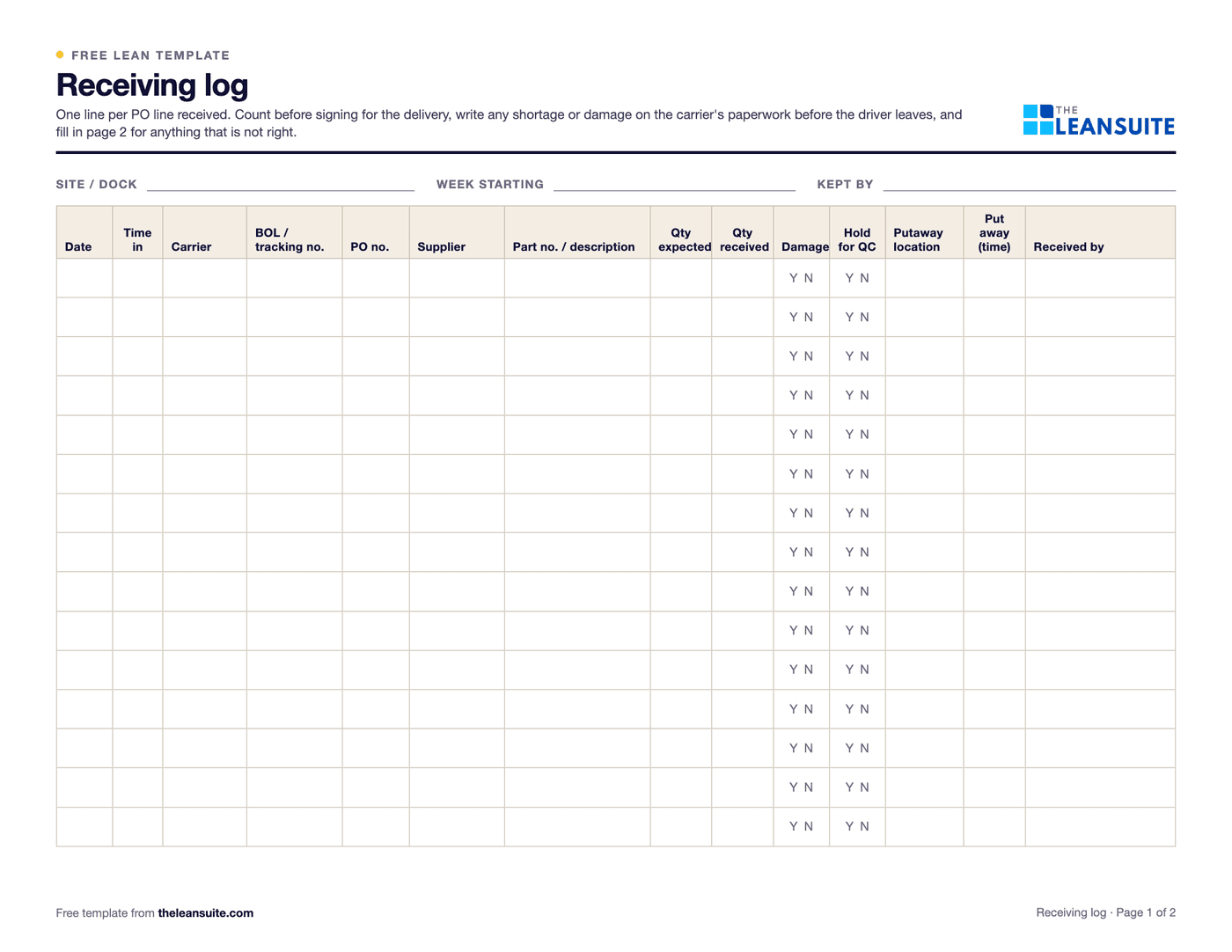
A receiving log is the record of everything that arrives at the dock: who brought it, which purchase order it is for, how much came and in what condition, and where it was put away. It is the first place to look when a part is missing, a supplier invoice does not match, or a carrier claim has to be made. A good log also shows how long material sits at the dock before it is available to use, often called dock-to-stock time. Page 1 of this template has a line per PO line received: date and time, carrier, BOL or tracking number, PO, supplier, part, quantity expected and received, damage, hold for QC, putaway location and time, and who received it. Page 2 is a discrepancy and damage report for shortages, overages, damage and wrong parts, with whether it was noted on the bill of lading and how it was resolved, and a week summary. The Excel version works out the difference, flags short, over and damaged lines, gives each line a status (on hold for QC, waiting for putaway, put away) and the dock-to-stock hours, with a summary by carrier and by day.
Free to use: print it, copy it and edit it for your team. Enter your name and work email once to download.
When to use it
When to use a receiving log
- At any dock where deliveries are not received straight into a system at the door.
- When shortages or damage are found too late to claim from the carrier or supplier.
- To measure how long received material waits before it can be used.
- When parts that were delivered cannot be found in stock.
How to fill it in
- 1
Log the arrival
Date, time, carrier and BOL or tracking number before the truck is unloaded.
- 2
Count against the PO
Quantity expected from the PO or ASN and quantity counted. Count before signing for the delivery.
- 3
Note damage and shortages on the BOL
Write them on the carrier's paperwork before the driver leaves, take photos, and log them on page 2.
- 4
Hold what needs inspection
Mark lines that need incoming inspection and keep them apart until quality releases them.
- 5
Put away and record it
The location and the time the parts were put away, so they can be found and the dock-to-stock time worked out.
- 6
Close discrepancies
Tell the supplier, agree a credit, replacement or return, and close the row when it is settled.
A filled-in example
Illustrative, not a benchmarkAn example: two deliveries on one Monday (illustrative numbers).
- 8:00, 100 brackets expected and received, put away at 14:30 the same day: 6.5 hours dock to stock.
- 9:00, 50 covers expected, 45 received and one carton crushed: logged as short and damaged, noted on the BOL with photos.
- The covers were put away at 9:00 the next morning: 24 hours dock to stock.
- Average dock to stock for the day: (6.5 + 24) ÷ 2 = 15.25 hours.
The supplier credited the 5 missing covers and the carrier accepted the damage claim because it was on the BOL. The team looked at why putaway had waited overnight.
Common mistakes
Signing before counting
A clean signature on the BOL makes a later shortage or damage claim hard to win.
No putaway location
Received but not located is as good as lost. Record where every line went.
Inspected stock mixed with released stock
Lines on hold for QC must be kept apart and marked until they are released.
Discrepancies left open
A shortage nobody follows up becomes a stock record error and, later, a line shortage.
Download the template
Free to use: print it, copy it and edit it for your team. Enter your name and work email once to download.
Run this template in LeanSuite
In LeanSuite every form and checklist your team submits shows up on the dashboards right away, each KPI has a target and Red-Amber-Green ranges and is flagged when new data crosses a limit, and values can be pulled on a schedule from Excel on SharePoint or OneDrive or from Google Sheets.
In the lean glossary
FAQ
Receiving log: common questions
More free templates
All templates- 5S audit checklist template25 checks, five per S, scored 1 to 5, with a score summary and a chart of the five S's.
- Gemba walk checklistA walk plan and route, 30 prompts in six groups and a findings table with owners and due dates.
- Leader standard work templateA team leader's daily, weekly and monthly routine with a box per day, follow-ups and a weekly review.
- Autonomous maintenance (CILR) checklist20 clean, inspect, lubricate and retighten checks with a box per day, an abnormality log and sign-off.
- A3 problem solving templateThe standard seven-box A3 on one landscape sheet, from background to follow-up.
- PDCA templateOne improvement cycle on one landscape page: plan, do, check against the goal, then standardize or adjust.
- 5 Whys templateA problem statement, five why rows with evidence, the root cause and the countermeasure.
- 5W1H templateSix questions with prompts and evidence, turned into a problem statement before the root cause analysis.
- 8D report templateD0 to D8 on three pages: team, is/is not, containment, occurrence and escape causes, actions and closure.
- Poka-yoke worksheetEach step's possible errors, prevention or detection, the method, a device idea and a verified box.
- Skills matrix templatePeople by skills, a 0 to 4 scale, a training column and a coverage row that shows the gaps.
- Standard work sheet templateTakt time, each element's manual, machine and walk time on a time chart, key points and standard WIP.
- One point lesson (OPL) templateOne topic on one page: wrong way and right way pictures, key points, why it matters and a sign-off record.
- SMED changeover worksheetChangeover steps with times, internal or external, what can move, ideas and before/after totals.
- Kaizen event charter templateScope, team and roles, baseline and target metrics, a five-day schedule, risks and sign-off.
- RACI matrix template17 kaizen project tasks by 10 roles, with R, A, C, I drop-downs and a check for one accountable per task.
- Layered process audit (LPA) checklist20 yes, no or N/A checks at the station, a fixed-on-the-spot box, scores by group and a findings table.
- PFMEA template (process FMEA)Failure modes, effects and causes rated for severity, occurrence and detection, with RPN before and after action.
- 5S red tag log and red tagsA log of every red-tagged item with its decision, and six printable red tags to cut out.
- Shift handover templateProduction against plan, safety, quality, equipment, materials and people, and the open issues the next shift takes over.
- Kanban card templateSix production and six withdrawal kanban cards to print and cut out, with loop sizing and a card register.
- Pareto chart templateA tally sheet, the categories sorted largest first with cumulative %, and the chart. Excel does the sorting and drawing.
- Control plan templateWhat is checked at each step, against which limits, how, how often, and what to do when a result is out.
- Corrective action request (CAPA) formProblem, containment, root cause, corrective and preventive action, and proof the fix worked, on two pages.
- Idea suggestion formA one-page idea form with the supervisor's answer and points, and an idea log that tracks days to answer.
- Just Do It (JDI) card templateSix Just Do It cards per sheet for quick fixes, with the rules for what counts and a log of every card.
- Quick kaizen templateOne page for a small improvement: before and after, the cause, the countermeasure, the results and whether the standard changed.
- Time study sheetTime each element over 10 cycles and work out the average, lowest repeatable and standard time. Excel does the sums.
- Spaghetti diagram templateSquared paper to trace every trip, a tally of trips and distance, and a before and after comparison.
- OEE tracking sheetOne row per shift for a week. The Excel version works out availability, performance, quality and OEE and charts the week.
- Near miss report formA two-page near miss report from the first report to closure, and an Excel log with status and days open.
- Safety observation card templateFour behavior-based safety cards per sheet, with safe and at-risk checks, the conversation and a tally sheet.
- Job safety analysis (JSA) templateJob steps, hazards, risk scored before and after the controls, the hierarchy of controls, PPE and sign-off.
- Risk assessment matrix template (5×5)A color-coded 5 × 5 severity and likelihood matrix, a scoring guide and a risk register.
- Incident investigation report templateWhat happened, people, evidence and timeline, root cause with 5 Whys and contributing factors, actions and sign-off.
- Toolbox talk templateA record of a short safety talk: topic, key points, questions raised, actions and an attendee sign-in sheet.
- Lockout/tagout (LOTO) procedure templateA machine-specific LOTO procedure: energy sources and isolation points, the steps from shutdown to restart, and the annual review.
- Forklift inspection checklist23 pre-shift checks for a week on one page, a do-not-operate rule, and a defect and repair log.
- Non-conformance report (NCR) formA two-page NCR from the requirement against what was found to disposition and closure, and an Excel NCR log.
- CAPA log templateAn Excel CAPA tracker with status, days open, late flags and counts by source, plus a printable log and monthly review.
- Supplier corrective action request (SCAR) formA SCAR from the problem and containment asked for to the supplier's 8D-style response, verification and closure.
- First article inspection (FAI) report templatePart information, a ballooned characteristic table with tolerances and results, material and process certificates, and sign-off.
- Preventive maintenance checklist templateA PM checklist per machine with readings and sign-off, and a PM schedule that works out the next due date.
- Equipment downtime log (MTTR and MTBF)A breakdown and downtime log, with MTTR, MTBF and downtime by machine and cause worked out in Excel.
- Environmental aspects and impacts registerAn ISO 14001-style register of aspects and impacts, with significance scoring, legal requirements, controls and owners.
- Manufacturing process instruction (MPI) templateOperation steps with parameters, tools, quality checks, safety and a photo each, plus revision history and approval.
- Engineering process instruction (EPI) templateScope, parameters and limits, equipment and materials, validation steps, acceptance criteria, change history and approvals.
- Training sign-off sheetAn attendance and sign-off record where each person signs they understood, with a competence check and an Excel log.
- On-the-job training (OJT) checklistA job breakdown and the four TWI Job Instruction steps with sign-offs, the tries and the date the trainee qualified.
- New hire onboarding checklist (manufacturing)29 onboarding items from before day 1 to the 90-day review, with owners, dates and review notes.
- Competency assessment formEach task rated 0 to 4 on the skills matrix scale with the evidence seen, then the gaps and a training plan.
- Cross-training plan templateWho is learning which task, from and to which level, by when, and how many are qualified on each task.
- Absenteeism tracker templateA monthly attendance grid with codes, absence rate by person and team, and an optional Bradford factor.
- Engineering change request (ECR) formAn ECR form with the change, what it touches, risk and approvals, and an Excel log that tracks each change to done.
- Design FMEA (DFMEA) templateA design FMEA worksheet with S, O, D and RPN before and after action, a class column and a design rating guide.
- Process flow diagram templateA squared sheet to draw the flow with a symbol key, and a step table that counts operations, moves, checks, waits and storage.
- PPAP checklistThe 18 PPAP elements with owner, due date and status, the five submission levels and a readiness count.
- Process capability (Cpk) study sheet25 subgroups of readings with Cp, Cpk, Pp and Ppk worked out, control limits to check stability, and a histogram.
- Office 5S audit checklist25 checks written for offices and shared areas, five per S, scored 1 to 5, with a score summary and actions.
- Floor marking color guideA floor marking color standard with swatches, marks and line widths to fill in, and a floor marking check with a layout sketch.
- Shadow board plannerPlan a shadow board: the tool list with how often each is used, a squared layout, labels, and a month of daily checks.
- Lubrication schedule templateEvery lube point with lubricant, method, amount, frequency and who, with next due dates and a monthly sign-off record.
- TPM tag logEvery abnormality tag with type, who fixes it, priority and dates, with days open and counts by type and week.
- Autonomous maintenance step auditCriteria for each of the seven autonomous maintenance steps, scored 0 to 2, with the step result and the decision to move on.
- Inventory cycle count sheetA blind count sheet with variance and tolerance, an ABC count schedule and record accuracy, worked out in Excel.
- Hour-by-hour production boardHourly plan against actual with running totals and the reason for each miss, plus a shift summary by reason.
- Cost savings trackerA savings log with hard and soft savings, payback and Finance's sign-off, plus a glide path against the year's target.
- CapEx request formA capital request with options, costs, benefits, payback and NPV, and the approval levels the amount needs.
- Cost-benefit analysis templateUp to three options side by side with costs, hard and soft benefits, payback, NPV and the benefit-cost ratio.
- Cost of poor quality (COPQ) worksheetCost of quality by prevention, appraisal, internal and external failure, with COPQ as a share of sales.
- Incoming inspection checklistReceiving inspection checks from paperwork to sample, the sampling plan, the decision, and an Excel log by supplier.
- Supplier audit checklistA supplier process audit of 32 questions scored 0 to 3, with section scores, a rating and the findings.
- Supplier scorecardMonthly PPM, on-time delivery and SCAR measures turned into points, a weighted score and a rating per supplier.
- Warehouse safety inspection checklistThirty warehouse safety checks from aisles to fire exits, marked OK or Not OK, with an action for every finding.
- Pallet racking inspection checklistRack checks per aisle with a green, amber and red damage rating, and a damage log with repair dates.
- Pre-shipment inspection checklistThe last check before shipping: part, quantity, labels, packaging, paperwork and photos, then release.
- Material shortage logEvery part short with its need date, line impact, ETA and escalation, and counts by reason and supplier.
Can't find the template you need?
Tell us what you're looking for. We'll make it and send it to your inbox, free.
A shift handover sheet, a red tag log, a changeover checklist for one machine: if your team uses it on the floor, ask.